.svg)
How to succeed in an oral presentation
An oral presentation involves conveying information, ideas, or arguments to an audience verbally, usually accompanied by visual materials such as slides. It combines verbal communication, body language, and visual aids to maximize the impact of the message. An effective presentation requires a clear structure, rigorous preparation, and mastery of speaking techniques.
.svg)


Definition and Components
Elements of an Oral Presentation
Definition: An oral presentation is a structured verbal communication accompanied by visual aids, aimed at conveying information, persuading, or inspiring an audience in a professional or academic context.
An oral presentation relies on three fundamental pillars that interact to create a coherent message. The verbal content forms the informational foundation, comprising the facts, arguments, and data you wish to communicate. Visual aids amplify this message by making abstract concepts more concrete and memorable.
The non-verbal dimension plays a crucial role that is often underestimated. 65% of communication occurs through body language according to studies in professional communication. Your posture, gestures, and facial expressions reinforce or weaken your verbal message.

| Component | Primary Function | Impact on Audience |
|---|---|---|
| Verbal content | Information transmission | Intellectual understanding |
| Visual aids | Illustration and memorization | Visual retention (40% higher) |
| Body language | Credibility and engagement | Trust and emotional connection |
| Voice and intonation | Dynamism and clarity | Attention maintenance |
Essential Technical Components
Technical elements form the infrastructure of your presentation. Projection equipment (projector, screen) must be tested before the presentation. PowerPoint slides or other supports require careful design with a balanced text/visual ratio.
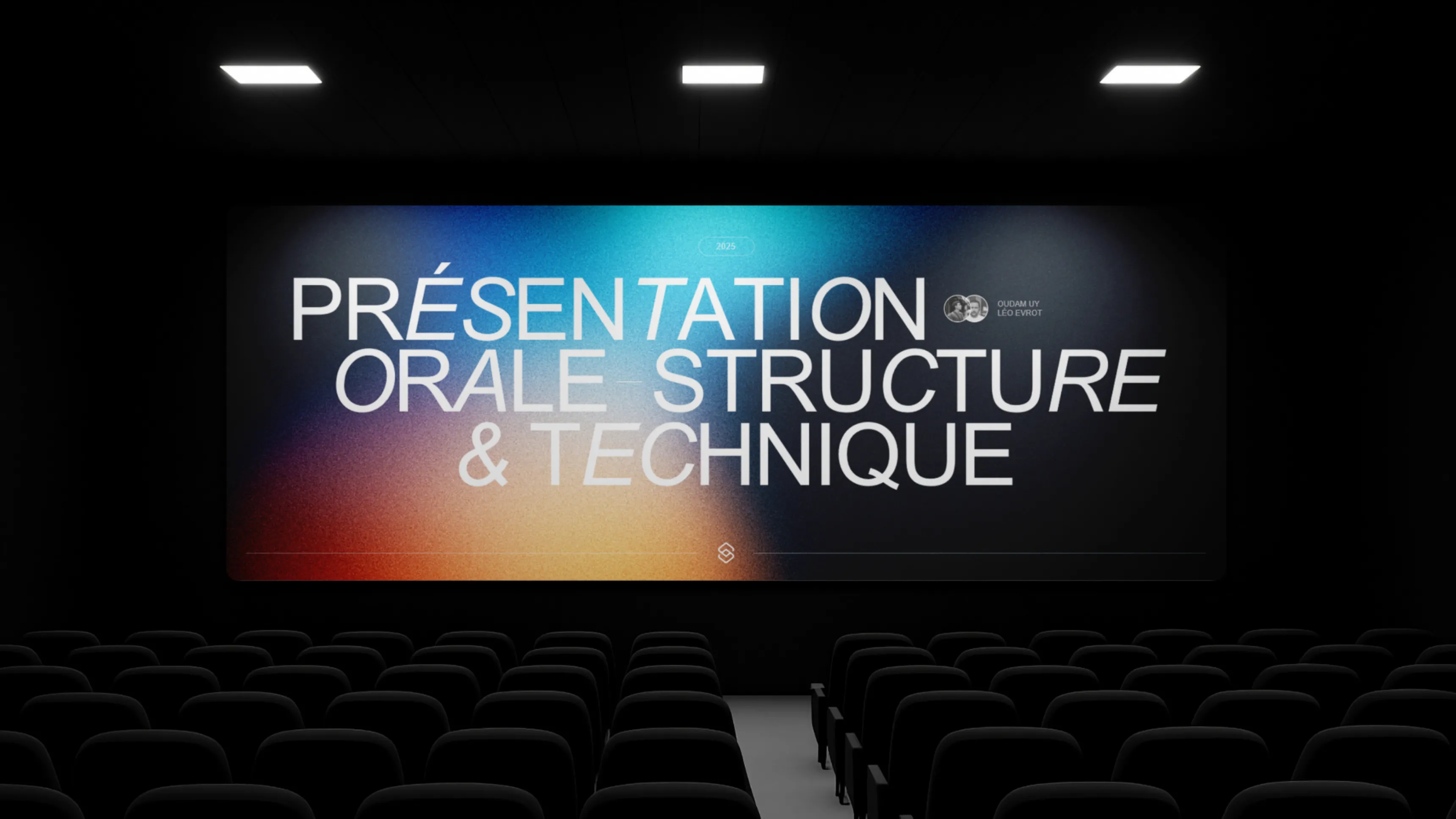
The physical environment directly influences the effectiveness of your communication. The room layout, lighting, and acoustics must be optimized. A theater-style room setup suits formal presentations, while a U-shaped arrangement promotes interaction.
Minimum logistical preparation:
- Equipment testing 30 minutes before the presentation
- File format compatibility verification
- Preparation of a plan B (PDF version, backup USB drive)
- Brightness adjustment for optimal slide visibility
Difference Between Oral and Written
Oral and written communication follow distinct logics that influence message construction. Written communication allows for rereading and in-depth analysis, while oral communication requires immediate understanding. This fundamental difference determines the structure and style of your presentation. To maximize the impact of your oral presentations, the PowerPoint experts from our presentation design agency create visual aids that amplify your speech without replacing it.
In oral presentation, you have tools that don't exist in writing: vocal variations, strategic pauses, eye contact. These elements create a human connection impossible to reproduce in a document. Apparent spontaneity (even when prepared) generates authenticity.
⚠️ Caution: Never read your slides word for word. The audience can read faster than you speak, creating frustrating desynchronization.
| Criterion | Written Communication | Oral Presentation |
|---|---|---|
| Pace | Controlled by the reader | Imposed by the presenter |
| Syntactic complexity | Long sentences acceptable | Short sentences imperative |
| Interaction | Delayed or absent | Immediate and adjustable |
| Memorization | Permanent support | Ephemeral (requires repetition) |
| Correction | Possible after publication | Impossible once stated |
Necessary Stylistic Adaptations
The transition from written to oral requires structural transformations. Complex sentences with multiple subordinate clauses become short and impactful sentences. Abstract concepts require concrete examples and visual metaphors. Numbers should be rounded to facilitate memorization (say "about 75%" rather than "74.3%").
Redundancy, considered a flaw in writing, becomes a strength in oral communication. Repeating key messages in different forms reinforces memorization. The "announce - develop - recap" structure exploits this strategic redundancy.
Structure of a Presentation
Introduction and Hook
The introduction determines the level of attention the audience will give to the rest of your presentation. The first 30 seconds are decisive in capturing interest. An effective hook can take several forms: a provocative question, a surprising statistic, a personal anecdote, or a concrete problem.
📋
Quick summary: A successful introduction answers three fundamental questions: Who are you? Why this topic? What will they learn?
Proven hook techniques:
1. Rhetorical question: "Do you know that 70% of professionals dread oral presentations?"
2. Shocking statistic: "Every day, 30 million PowerPoint presentations are created worldwide"
3. Personal anecdote: Tell a relevant experience that illustrates the issue
4. Counter-intuitive statement: Challenge a preconceived idea in the field
5. Hypothetical scenario: "Imagine you had to convince an investor in 5 minutes..."
The presentation of the outline creates a reassuring framework for the audience. Clearly announce the 3 to 5 main sections without going into details. This mental roadmap helps listeners structure their understanding and anticipate the flow.
Establishing Credibility
Your legitimacy should not be assumed but built from the introduction. Briefly mention your relevant expertise without falling into excessive self-promotion. One sentence is enough: "After 10 years of corporate communication consulting" or "Having delivered 50 presentations to executive committees".
Immediately connect your topic to the audience's concerns. Make explicit the concrete benefit they will gain: time savings, skill improvement, solving a specific problem. This connection transforms passive listeners into engaged participants.
Development and Argumentation
The body of the presentation deploys your arguments according to progressive logic. The rule of three applies perfectly: three main arguments, three examples, three advantages. This ternary structure facilitates memorization and creates a natural rhythm.
Each argument follows an identical architecture to create reassuring predictability. First state the main idea (hook sentence), develop with evidence or examples (body), then synthesize (transition sentence). This structural repetition guides the audience without monotony.
| Argumentative Structure | Recommended Duration | Key Elements |
|---|---|---|
| Argument announcement | 30 seconds | Clear main idea |
| Development | 2-3 minutes | Evidence, data, examples |
| Visual illustration | 1 minute | Graph, diagram, photo |
| Transition | 15 seconds | Link to next argument |
Persuasion Techniques
Classical rhetorical methods retain all their effectiveness in the modern professional context. Ethos (speaker credibility) is built through data precision and subject mastery. Pathos (emotional appeal) is integrated through personal stories or client cases. Logos (argumentative logic) structures reasoning irrefutably.
Argumentative progression can follow different patterns depending on your objective. The problem-solution structure suits sales presentations. The chronological approach is essential for project reviews. The comparative method (advantages/disadvantages) facilitates decision-making.
Argumentative reinforcement tools:
- Recent numerical data (2024-2025)
- Testimonials from recognized experts
- Industry case studies
- Real-time demonstrations
- Impactful visual comparisons
Conclusion and Call to Action
The conclusion doesn't simply summarize the points covered, it transforms information into action. The last 60 seconds determine what the audience will remember and do after your presentation. A weak conclusion negates the impact of a brilliant development.
Begin with a selective synthesis: recall only the 2-3 essential messages the audience must absolutely remember. Avoid the exhaustive list that dilutes impact. Rephrase these points with different words from those used in the development to reinforce memory anchoring.
⚠️ Caution: Never introduce new information in the conclusion. This creates confusion and weakens your main message.
Effective Call-to-Action
The call to action transforms the passive audience into engaged actors. Define a simple, specific, and measurable action that participants can perform immediately. "Contact me" remains vague, while "Download the guide from our website before Friday" creates urgency and clarity.
End with a memorable phrase that resonates after the presentation. A relevant quote, an open question, or a return to your initial hook creates a satisfying narrative loop. This echo closing reinforces the overall coherence of your presentation.
Elements of an impactful conclusion:
1. Clear verbal signal: "In conclusion" or "To finish"
2. Recap of the 2-3 main messages
3. Concrete benefit for the audience
4. Specific action to take
5. Memorable closing phrase
6. Authentic thanks
For impactful sales presentations, the conclusion must transform interest into a purchase decision with a clear and immediate call-to-action.
Content Preparation
Audience Analysis
Preparation begins with a thorough understanding of your audience. Who are they? defines the appropriate level of technicality. Field experts expect depth, while a general audience requires accessible simplifications and analogies.
The audience's motivations determine the angle of your presentation. Decision-makers seek actionable conclusions and clear recommendations. Technicians want to understand underlying mechanisms. Adapting your speech to expectations multiplies the impact of your message.
| Audience Profile | Main Expectations | Required Adaptation |
|---|---|---|
| Senior management | ROI, strategic vision | Summary, key figures, recommendations |
| Technical teams | Methods, detailed processes | Technical depth, demonstrations |
| Potential clients | Benefits, differentiation | Added value, social proof |
| General public | Clarity, simplicity | Simplification, concrete examples |
Knowledge Mapping
Evaluate the level of prior knowledge on your topic. Starting too basic bores experts, while starting too technical loses novices. A preliminary survey via a simple questionnaire or informal exchanges avoids these pitfalls.
Potential objections must be anticipated and integrated into your argumentation. Identify the 3-4 probable resistances and prepare factual responses. Proactively addressing doubts reinforces your credibility and disarms contradictors.
Organization of Ideas
Content structuring follows proven principles of pedagogy and memorization. The pyramidal method places conclusions first, then supporting arguments. This approach suits busy audiences who want the essentials immediately.
For complex subjects, logical progression (from simple to complex, from known to unknown) facilitates learning. Start with familiar concepts before introducing new notions. Each new idea builds on the understanding established previously.
Effective organization techniques:
- Chronological: History, evolution, future trends
- Spatial: Geography, departments, ecosystem
- Causal: Causes → Effects → Solutions
- Comparative: Option A vs Option B vs Option C
- Problem-Solution: Current situation → Issues → Recommendations
📋
Quick summary: One main idea per slide, three arguments maximum per section, five sections maximum per presentation.
Storyboard Creation
The storyboard visualizes the narrative flow before slide creation. On paper or whiteboard, sketch each section with its key message and envisioned visual support. This overview reveals inconsistencies, redundancies, or logical gaps.
Identify predictable low-attention moments (after 15-20 minutes) and place dynamic elements there: short video, interactive demonstration, audience question. This proactive attention management maintains engagement throughout the presentation.
Creating Visual Aids
Slides amplify your message without replacing it. The fundamental rule: a slide complements your speech, it doesn't duplicate it. The audience cannot simultaneously read dense text and listen to you. This cognitive conflict creates frustration and reduces retention.
The optimal visual/text ratio favors images, graphs, and diagrams. 30% maximum text per slide, in the form of keywords or short phrases. Visuals trigger emotional memorization superior to that of words.

| Content Type | Recommended Use | Common Errors |
|---|---|---|
| Text | Titles, keywords (max 6 per slide) | Entire paragraphs, font < 24pt |
| Images | Concept illustrations, visual metaphors | Generic photos unrelated to topic |
| Graphs | Numerical data, trends | Complex unreadable graphs |
| Videos | Demonstrations, testimonials | Videos > 90 seconds |
⚠️ Caution: Respect visual consistency with 2-3 colors maximum, a single font family, and uniform element alignment.
Effective Design Principles
Visual hierarchy guides the audience's eye toward priority information. Use size, color, and positioning to create this hierarchy. The most important element occupies the most space or the most contrasting color.
White (or negative) space is not emptiness to fill but a clarity tool. 40-50% empty space on a slide improves readability and reduces cognitive load. Overloaded presentations mentally exhaust the audience. Consult our illustrated design rules to create visually balanced supports.
Visual aids quality checklist:
- [ ] Readable from the back of the room (distance test)
- [ ] Sufficient contrast (dark text on light background or reverse)
- [ ] One main idea per slide
- [ ] High-resolution visuals (minimum 1920x1080)
- [ ] Animations limited to essential transitions
- [ ] Slide numbering for tracking
Public Speaking Techniques
Voice and Pace Management
Voice constitutes your primary instrument of oral communication. The ideal pace is between 140-160 words per minute for optimal understanding. Too fast a pace prevents assimilation, while too slow a pace causes boredom. Intentionally vary speed to create dynamism.
Vocal variations transform a monotonous speech into a captivating performance. Modulate the volume (loud to emphasize, soft for intimacy), tone (high for enthusiasm, low for gravity), and rhythm (fast for action, slow for reflection). These changes maintain auditory attention.
Vocal preparation exercises:
1. Articulatory warm-up: Tongue twisters for 5 minutes
2. Breath control: Slow exhalation for 15 seconds
3. Tonal modulation: Reading a text with varied emotions
4. Vocal projection: Speaking clearly without shouting at 5 meters
Diction Techniques
Clear articulation differentiates the professional from the amateur. Pronounce each syllable distinctly, particularly sentence endings often swallowed. Open your mouth more than in ordinary conversation to compensate for room acoustics.
Verbal tics ("uh", "so", "actually") pollute speech and betray stress. Identify your linguistic crutches by recording yourself, then replace them with silent pauses. Mastered silence projects more assurance than verbal filler.
Body Language and Posture
Non-verbal communication represents 55% of the impact of your message according to Albert Mehrabian's research. Your posture should project assurance without arrogance. Standing position, feet shoulder-width apart, weight balanced between both legs. This physical anchoring translates into perceived stability.
Gestures naturally amplify your speech. Open movements (visible palms, spread arms) express honesty and inclusion. Closed gestures (crossed arms, clenched fists) create distance. Synchronize your gestures with your words to reinforce message coherence.

| Gesture | Perceived Meaning | Usage Context |
|---|---|---|
| Open palms | Transparency, honesty | Information sharing, openness |
| Steepled fingers | Expertise, reflection | Analytical moments |
| Hand on heart | Authenticity, commitment | Values, personal convictions |
| Open arms | Inclusion, welcome | Introduction, conclusion |
| Pointing index finger | Direction, emphasis | Use sparingly (can be aggressive) |
⚠️ Caution: Avoid unconscious repetitive gestures (playing with a pen, touching your hair) that distract the audience and signal discomfort.
Space Occupation
Strategic mobility reinforces engagement. Move with intention during transitions between sections, remain static during important points. Movement signals change, while immobility invites concentration.
In a large room, approach different sections of the audience to create proximity. In a confined space, vary your body orientation. The goal: for each participant to feel personally addressed at least once.
Eye Contact and Presence
Direct gaze establishes individual connection in a collective context. Scan the audience by creating 2-3 second micro-contacts with different people. Avoid only fixing on friendly faces or management, this excludes the rest of the audience.
The triangle technique (gaze alternating between 3 points in the audience) creates the impression of looking at everyone. For large audiences, mentally divide the room into zones and successively address each section. 15% of time can be devoted to your notes or slides, 85% to the audience.
📋
Quick summary: Eye contact = connection; expressive face = emotional engagement; authentic smile = mutual trust.
Strategies according to configuration:
- Small room (< 20 people): Individual gaze on each participant
- Medium room (20-50): Expanded triangle technique
- Large room (> 50): Division into zones, focus on front rows
- Videoconference: Look at camera (not screen) to simulate direct contact
Stage Presence Management
Stage presence is cultivated through self-awareness. Record yourself on video to identify inconsistencies between your intention and your expression. Ask for feedback on your posture, gestures, and perceived energy.
Authenticity surpasses technical perfection. Allow yourself to be human: a spontaneous smile, a genuine emotion, a personal anecdote creates connection. Controlled vulnerability humanizes the presenter and reinforces audience sympathy.
Stress Management
Relaxation Techniques
Presentation stress affects 75% of professionals, even experienced ones. Diaphragmatic breathing constitutes the most accessible tool for physiological regulation. Slow inspiration over 4 counts, retention over 4 counts, exhalation over 6 counts. Repeat this cycle 5 times before going on stage.
Positive visualization reprograms your anxious anticipation. Imagine precisely the successful unfolding of your presentation: the attentive audience, your smooth transitions, the final applause. 10 minutes of daily visualization the preceding week significantly reduces anxiety.
Pre-presentation relaxation protocol (15 minutes):
1. Minutes 1-5: Deep breathing exercises
2. Minutes 6-10: Light stretching (neck, shoulders, wrists)
3. Minutes 11-13: Success visualization
4. Minutes 14-15: Positive affirmations aloud
Acute Stage Fright Management
When stage fright arises during the presentation, emergency techniques exist. Kinesthetic anchoring (discreetly pressing your thumb and index finger) activates a calm response conditioned by prior training. Intentionally slow your pace, this automatically regulates your breathing.
Drink water regularly at room temperature. This simple gesture rehydrates vocal cords and offers natural micro-breaks. Keep a bottle within reach even if you're not thirsty, it serves as a reassuring gestural crutch.
Practice and Training
Practice transforms preparation into performance. 5-7 complete rehearsals ensure fluidity without creating robotic over-learning. Vary conditions: alone aloud, in front of a colleague, in video recording. Each modality reveals different improvement areas.
Precise timing avoids catastrophic overruns. Test each section individually, then the whole with transitions. Plan a 15% margin: a 20-minute presentation is prepared over 17 minutes to absorb unexpected events and questions.

| Type of Practice | Main Benefit | Recommended Frequency |
|---|---|---|
| Mental rehearsal | Structure memorization | Daily (5 min) |
| Aloud rehearsal | Verbal fluidity, timing | 3-4 times |
| Filmed rehearsal | Non-verbal adjustment | 2 times minimum |
| Rehearsal with test audience | Real feedback, adjustments | 1 time (essential) |
📋
Quick summary: Rehearse until confidence, not until perfection. Excessive practice kills spontaneity.
Real Conditions Simulation
Train in an environment similar to that of the final presentation. If possible, test in the actual room to familiarize yourself with acoustics and layout. This prior exposure reduces anxiety-inducing surprise effect.
Simulate probable interruptions: difficult question, technical failure, external noise. Mentally prepare your reactions. Improvisation can be trained: the more you practice difficult scenarios, the more instinctive your management becomes.
Managing the Unexpected
The unexpected cannot all be prevented, but your reaction determines their impact. A technical failure only ruins the presentation if you panic. Prepare a plan B: printed version of your slides, ability to present without visual support, knowledge of essential content by heart.
Destabilizing questions are handled through reformulation. "That's an excellent question that touches on..." gives you 10 seconds to mentally structure your response. If you don't know, honesty surpasses hasty improvisation: "I don't have that precise information, I'll get back to you on that".
Survival kit for common unexpected events:
- Projection failure: Continue without slides by storytelling/explaining
- Time overrun: Condensed version of your prepared conclusion
- Hostile question: Stay factual, don't personalize, refocus on data
- Memory lapse: Consult your notes without apology, calmly resume
- Audience lack of energy: Interactive question or 30-second energizing break
⚠️ Caution: Never apologize for an unexpected event the audience hasn't noticed. Your mention draws attention to the problem.
Transforming Obstacles
Some unexpected events become opportunities. A difficult question demonstrates audience engagement and allows you to deepen a point. A technical failure humanizes the presenter and creates complicity ("We've all experienced that"). Visible resilience impresses more than smooth perfection.
Maintain positive energy despite disruptions. Your attitude toward adversity colors the overall perception of your presentation. A smile, a light self-deprecating remark, then a focused resumption signals professionalism.
Tools and Supports
PowerPoint and Alternatives
PowerPoint remains the dominant tool with 500 million active users, but alternatives offer specific advantages. Google Slides excels for real-time collaboration and cloud accessibility. Keynote (Apple) offers superior design and smooth animations. Prezi creates dynamic non-linear presentations. To choose the tool adapted to your needs, explore our software comparison and their optimal use cases.
Tool choice depends on your context: compatibility with presentation equipment, required level of collaboration, desired visual complexity. Test compatibility: a Keynote file may lose functionality on a Windows PC.
| Tool | Main Strengths | Limitations | Best For |
|---|---|---|---|
| PowerPoint | Versatility, advanced features | Cluttered interface | Formal, corporate presentations |
| Google Slides | Collaboration, accessibility | Limited offline features | Teamwork, simple presentations |
| Keynote | Design, smooth animations | Apple ecosystem only | Creative visual presentations |
| Prezi | Dynamism, spatial navigation | Learning curve | Visual storytelling, innovation |
| Canva | Templates, ease of use | Less professional | Marketing presentations, startups |
Essential Features
Exploit advanced features to professionalize your output. Presenter mode displays your notes on your screen only, invisible to the audience. Smooth transitions (fades, morphing) create visual continuity. Animations progressively reveal information, controlling attention.
Professional templates accelerate creation while guaranteeing consistency. Invest in quality libraries (SlideModel, SlideCarnival) or create your reusable brand template. This visual infrastructure reduces creation time by 40%.
Remote Controls and Pointers
The presentation remote control (clicker) frees your mobility and professionalizes your posture. Models with integrated laser pointer (Logitech R500, Kensington Expert) combine slide control and precise designation. Range of 15-20 meters for large rooms.

The laser pointer is used sparingly to avoid distraction. Designate a specific element for 2-3 seconds maximum, then turn off. A laser that constantly sweeps the screen fatigues eyes and signals presenter stress.
Remote control selection criteria:
- Ergonomics: Natural grip, intuitive buttons
- Connectivity: USB-A or USB-C depending on your equipment
- Battery life: Minimum 20 hours continuous use
- Functions: Forward/back, pointer, black screen
- Compatibility: Windows, macOS, Linux
📋
Quick summary: Test your remote 30 minutes before presentation. Have backup batteries. Know keyboard navigation as plan B.
Modern Alternatives
Smartphone applications transform your phone into a remote via Bluetooth or WiFi. PowerPoint Remote, Keynote Remote, or Google Slides Remote display your notes and timer. Limitation: requires stable connection and drains battery quickly.
Touch presentation systems (tablets, interactive screens) allow live annotation on your slides. This visual spontaneity particularly suits training sessions and collaborative workshops. Favor a precise stylus for readable writing.
Notes and Memory Aids
Notes are not a crutch but a strategic security tool. Optimal format: A6 cards with key points only (no complete sentences). 16pt font minimum for quick reading without prolonged gaze lowering. 3-5 cards for a 20-minute presentation.
Structure your notes by section with color codes: introduction in green, development in blue, conclusion in red. This visual signage facilitates quick navigation. Clearly number cards to avoid mixing.
Optimal card content:
- Exact transitions between sections
- Precise figures and dates
- Textual quotes (if necessary)
- Timing per section
- Questions to ask audience
⚠️ Caution: Never read your notes. They serve only as a safety net to find the thread after an interruption.
Professional Use
Position your notes on a lectern or table at comfortable height. Avoid holding them in hand: this limits your gestures and amplifies stress-related trembling. Consult them during transitions, never during an important point.
Digital presenter mode advantageously replaces paper cards if you master the technology. Discreet display on your screen: current slide, next slide, notes, timer. Familiarize yourself with this interface during rehearsals to avoid errors on the day.
Frequently Asked Questions
How to manage stage fright before an oral presentation?
Stage fright is managed through a combination of physical and mental techniques. Practice diaphragmatic breathing (inspiration over 4 counts, exhalation over 6) for 5 minutes before presenting. Visualize the successful unfolding of your presentation and reinterpret physical sensations as positive excitement rather than anxiety. Rigorous preparation remains the best anxiolytic.
What is the ideal duration of an oral presentation?
The optimal duration depends on context, but 18-20 minutes represents the standard for maintaining attention without cognitive fatigue. TED conferences use this format to maximize impact. For longer presentations, integrate a break or interactive activity every 20 minutes. Always plan a 15% margin for questions and unexpected events.
How to structure an effective oral presentation?
Follow the classic three-part structure: introduction with hook (10%), development with 3 main arguments (75%), conclusion with call to action (15%). Announce your outline from the introduction to create a reassuring framework. Use clear verbal transitions between each section ("Let's now move to..."). End with a memorable message that summarizes your essential points.
How many slides for 20 minutes of presentation?
The rule of thumb: 1 to 2 slides per minute, or 20-40 slides for 20 minutes of presentation. This rule varies according to complexity: simple visual slides can scroll faster, while a complex graph may require more time. Favor content division and a large number of slides, this makes the exercise more dynamic.
How to maintain audience attention during a presentation?
Vary stimuli to reawaken attention: alternate between factual data and personal stories, integrate questions to the audience, use short videos (30-60 seconds). Change your vocal intonation and your position in space. Critical moments (after 15 minutes) require a dynamic element: demonstration, participatory exercise, or 30-second energizing break.
What to do in case of memory lapse during a presentation?
Stay calm and consult your notes without apologizing - the audience often doesn't notice the problem. Use a generic transition phrase ("As I was mentioning...") to give yourself time to find the thread. If the lapse persists, skip that point and continue: overall coherence matters more than a missing detail. Deep breathing for 3 seconds reactivates memory.
How to respond to a difficult or hostile question?
First reformulate the question to give yourself thinking time: "You raise an important point concerning...". Stay factual and avoid personalizing. If you don't know the answer, admit it honestly and offer to get back to the person with the information. For a hostile question, acknowledge the emotion ("I understand your concern") then refocus on objective data.